



You can now snooze Google Calendar notifications on desktop
Users cannot remove the option to snooze notifications but can change the timing of snoozed notifications in their Calendar notifications settings menu. By default, snoozed notifications reappear one minute before the scheduled meeting and users can re-snooze a notification for an additional five minutes as many times they'd like until the meeting ends.
- Country:
- United States
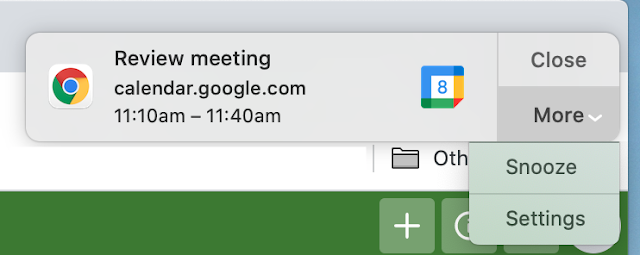
Google has added the ability for users to snooze Calendar desktop notifications directly from the notification itself. To use this new feature, users must have desktop notifications enabled and Calendar open in a tab to see notifications on their desktop.
In the coming weeks, users with desktop notifications enabled will see a one-time promo regarding this new feature. It is worth mentioning that snoozed notifications only appear in a Google Chrome browser.
Users cannot remove the option to snooze notifications but can change the timing of snoozed notifications in their Calendar notifications settings menu. By default, snoozed notifications reappear one minute before the scheduled meeting and users can re-snooze a notification for an additional five minutes as many times they'd like until the meeting ends.
The new snooze Calendar notifications feature is rolling out to both Rapid Release and Scheduled Release domains and is available to all Google Workspace customers, as well as G Suite Basic and Business customers.
How to turn on Calendar notifications and customize timings?
To change notification preferences for any or all events on Google Calendar, follow these steps:

- Open Google Calendar in your browser
- Click on the Settings icon > Settings
- Under General, click on Notification settings
- Under Notification settings, Click the Notifications drop-down menu and turn 'desktop notifications' on
- Customize the timing of snoozed notifications


 Google News