



Dark mode and other features added to Google Maps on iOS
Firstly, you can now share your real-time location from iMessage on your iPhone. Simply tap on the Google Maps button in iMessage and your location will be shared for one hour by default, with the option to extend up to three days. To stop sharing your live location, just tap the “stop” button on the thumbnail.
Google is rolling out three new features, including dark mode and the ability to share live location right from iMessage, to its Maps for iOS application.
"Today, we're rolling out three new ways to more conveniently access Google Maps' information about the world right from your iPhone," the company said on Tuesday.
Firstly, you can now share your real-time location from iMessage on your iPhone. Simply tap on the Google Maps button in iMessage and your location will be shared for one hour by default, with the option to extend up to three days. To stop sharing your live location, just tap the “stop” button on the thumbnail.
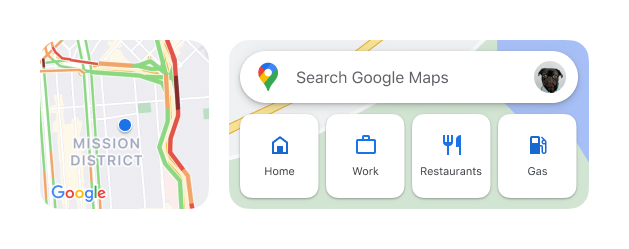
Secondly, the new nearby traffic widget will let you access the live traffic conditions for your current location right from your iPhone's home screen.
"With the new nearby traffic widget, you can now access this information for your current location right from your home screen. So if you're about to leave home, work, school, or any other place, you'll know at a glance exactly what traffic is like, and can plan accordingly," Google wrote in a blog post.
And, if you are visiting one of your regular spots, the new Google Maps search widget will allow you to search for your favorite places or navigate to frequent destinations with just a quick tap.
To use the new widget feature, you will need to update your Google Maps app to the latest version. Thereafter,
- On your iPhone's home screen, touch and hold a widget or an empty area until your apps jiggle.
- Tap the Add button
- Search for and tap the Google Maps app
- Swipe to select a widget, then tap Add Widget
- Tap Done
Thirdly, in the coming weeks, dark mode on Google Maps for iOS will begin rolling out, which will help you reduce screen fatigue and save your battery life. To turn on the dark mode, just head to your Settings, tap on dark mode, then select “On”.
Starting this month, the new features will be available to all Google Maps on iOS users.


 Google News