



Direct My Call on Pixel helps you save time when calling customer service: Here's how to activate it
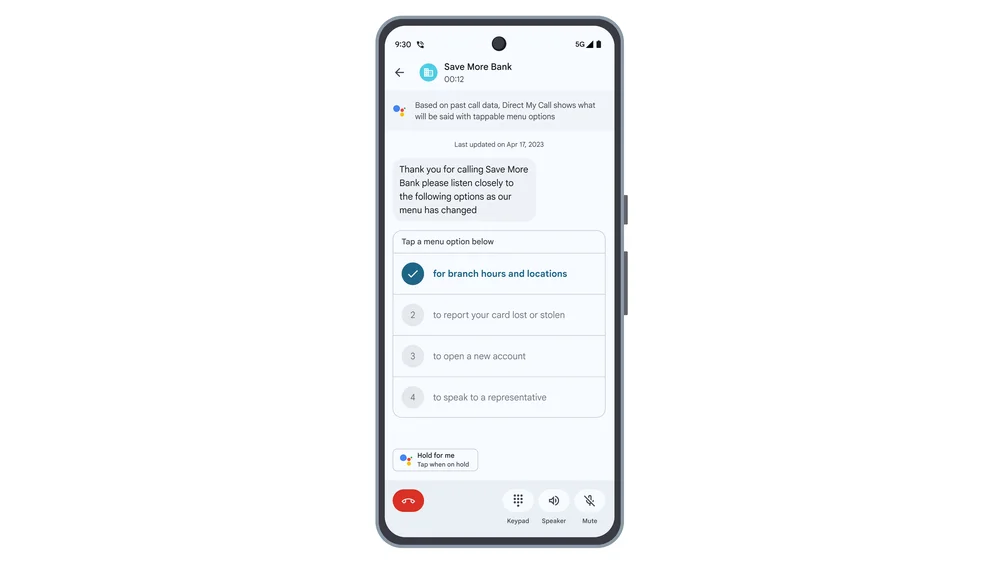
Amidst the hustle and bustle of our hectic schedules, reaching out to customer support can often feel like a daunting task. Direct My Call, a Pixel-exclusive feature makes those calls a little more bearable by helping you quickly navigate menu options while on a call.
Direct My Call is a feature available on Pixel 3a and newer devices in the United States and Pixel 6 and newer devices in the U.K. It is specifically tailored to assist users when dealing with businesses that utilize automated menu systems like certain airlines and major retailers. It displays the automated voice prompts and what options you have to choose from through tappable number buttons during a call.
The feature is currently available in English.
To activate Direct My Call on your Pixel, follow these steps:
- Open the Phone app
- In the upper right corner click the three dots icon to choose the "More" menu.
- Select Settings.
- Choose the "Direct My Call" option.
- Confirm if the Direct My Call option is toggled to the "on" position. If it’s not, toggle the option on.
- You can also toggle on "faster menu options", which shows an eligible automated system’s menu options on your screen before you hear them if you are on a Pixel 3a or later.
- Now, when you make a call to a supported service number that has an automated voice system, your phone will display what the automated voice is saying and options you can choose from.
- To navigate through the system, touch the option you want or interact with the numerical menu that appears at the bottom of the screen.
- To exit Direct My Call while on a phone call, tap Close (the X) in the top left corner of the screen.
- READ MORE ON:
- Direct My Call on Pixel
- Google Pixel


 Google News