

How to Force Stop Apps on iPhone?

Is your iPhone app or game unexpectedly freezing or not responding? Don't panic - it really is easy to close an app on your device in order to fix any such issues. This works the same no matter what model of iPhone or iPad you have, and will close the app completely so that when you reopen it, everything will run smoothly again. Many users report that this is the simplest way to solve temporary issues with their apps and games, without having to take their devices off for repairs or reinstalling their apps. So if you encounter any difficulty with your iPhone or iPad apps, remember that in just a few simple steps you'll be able to close them and get back up and running again!
Should You Force Quit Apps?
Force-closing apps on an iPhone can be useful when the app is unresponsive or if you won't need it for a long period of time. For example, after taking an Uber ride, I close the app since it continues to access my location data and I don't plan to use it again in the near future. Generally, though, I find that for productivity-related apps like browsers and music players, there's usually no reason to close them as they do not impact battery life as extensively as other apps. Despite this, if you are experiencing lagging or streaming issues with an app, force closing could provide some relief. In order to close out an app successfully without any trouble, follow these steps…
How to Close Apps on iPad or iPhone?
It is actually possible to force close the iPhone app, but the procedure will be slightly different on different devices. There will be a difference between devices with and without Face ID. Let's consider both options separately.
On iPhone with Face ID
Are you struggling to close apps on your iPhone with Face ID? If so, there's no need to worry. All you need to do is:
- Swipe up from the gesture area at the bottom of the screen and keep your finger in place until you see the multitasking interface.
- You can swipe right or left to find the app that you want to force quit
- Flick it up.
This will instantly close the app and if all else fails, rebooting your device should also do the trick. However, if applications hang frequently, it is worth considering the cause. With a high probability, the storage cleanup app will help you. Here you can download iPhone cleanup and actively use it. This cleanup app is able to speed up your smartphone. In addition to being a storage cleaner, the application can perform app store cleaning. This phone cleaner has proven itself well on various devices, so it can be recommended for use. You can read more in cleanup app reviews.
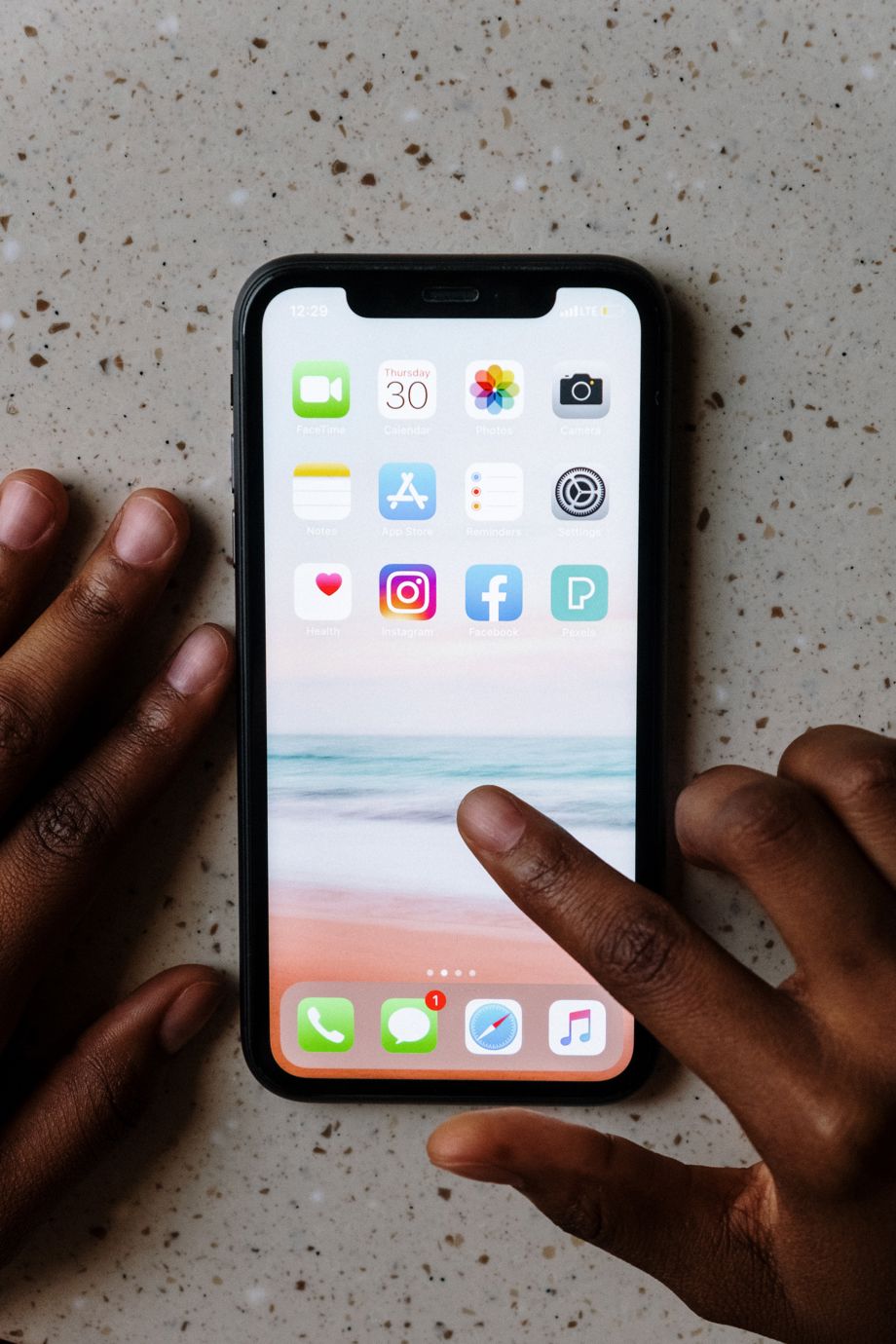
Image Credit: Cottonbro studio on pexels
On iPhone SE 2020, iPhone 8 and older
Double-tapping your Home button can save you time and energy when you need to manage applications quickly. It brings up a handy fast app switcher which allows you to rapidly switch between open apps and force quit apps, as well. To use it, all you have to do is go to the app screen that you'd like to force quit and swiftly flick it off the screen. You can then close off a lot of apps simultaneously, in just a few seconds!
On iPad with the Home button
If you're struggling to keep your iPad with a physical Home button running smoothly, you can easily summon the App Switcher and manually force close apps that are running in the background. All it takes is:
- Two quick taps of the Home button to open the App Switcher.
- Using your finger to flick upwards on any apps that could be using up system resources.
For newer models (running iOS 12 or later, or iPadOS 14/13 or later) swiping up from the bottom of the screen can give you access to this interface as well.
How to Reopen a Closed App on iPhone or iPad?
Reopening a closed app on your iPhone or iPad doesn't have to be complicated. To protect apps and their data from instability, it may be a good idea to close apps periodically. However, if the app is unresponsive and needs to be reopened, there are three easy ways to do so.
- You can locate the correct app icon on the Home Screen or App Library and just tap it again.
- You can ask Siri "Open [app name]", and that should start the app up in no time.
- Many widgets for specific apps exist on both Home Screens and Today View which will open those apps when tapped; for instance, tapping the clock widget will open the Clock app right away.
Whatever you need to get back into an app you closed moments ago, these useful tips will help you quickly get back into your favorite programs.
Conclusion
Closing or force closing apps on your iPad and iPhone can be both easy and complex depending on your device. The procedure is slightly different between devices with Face ID and without it, not to mention iPads which have their own unique set of instructions as well. Knowing how to close an app properly will help you keep track of your resources better and minimize any device freezes.
(Devdiscourse's journalists were not involved in the production of this article. The facts and opinions appearing in the article do not reflect the views of Devdiscourse and Devdiscourse does not claim any responsibility for the same.)


 Google News