



How to color-code shared drives' folders in Google Drive?
The new color-coding capability in Google Drive will be available to all Google Workspace customers, as well as G Suite Basic and Business customers, and users with personal Google Accounts.
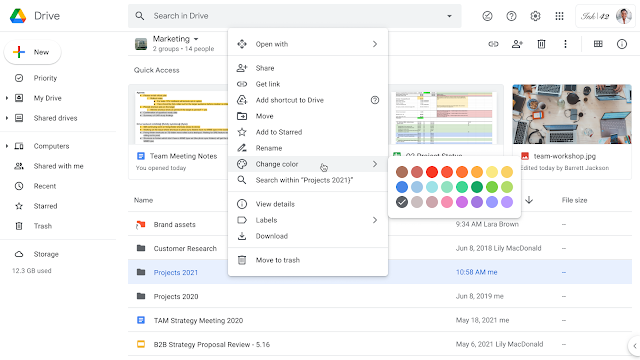
Google Drive has extended the color-coding capability from My Drive to shared drives and shortcuts, allowing users to customize the color of folders in shared drives and shortcuts to folders.
"Assigning colors to specific folders can help you visually organize your Google Drive. For example, you can assign colors to your most important folders, making it easier to quickly navigate to them in Drive," Google said.
It is worth noting that custom folder colors in shared drives, which empower teams and organizations to store, access, and collaborate on files, and shortcuts -that make it easy to surface content without creating copies of files - are only visible to you.
The new functionality is gradually rolling out to Rapid Release domains and will take up to 15 days for the feature to be visible to everyone. For Scheduled Release domains, the rollout will start on June 17, 2021.
The new color-coding capability in Google Drive will be available to all Google Workspace customers, as well as G Suite Basic and Business customers, and users with personal Google Accounts.
How to color-code shared drives' folders and folder's shortcuts in Google Drive?
To set a folder color:
- Open Google Drive
- Right-click the folder you want to change.
- Click Change color and choose the color you want for your folders
ALSO READ
-
Tragedy Strikes: Deadly Blast at Hunan Fireworks Factory
-
Asia Stocks Slip Amid Middle East Tensions and Market Uncertainty
-
Taiwan's Diplomatic Dance: Lai's Surprise Eswatini Visit Amid Chinese Pressures
-
Finra Probes Morgan Stanley's Unlicensed Bankers
-
Chaos Erupts at Oklahoma Lakeside Party: A Night of Panic and Gunfire


 Google News