

One UI 3.1.1 rolling out to other Galaxy Z-series foldables
With the new "Rotate All Apps" feature, Samsung has made it easier to make switching your phone from portrait to landscape smoother than ever.
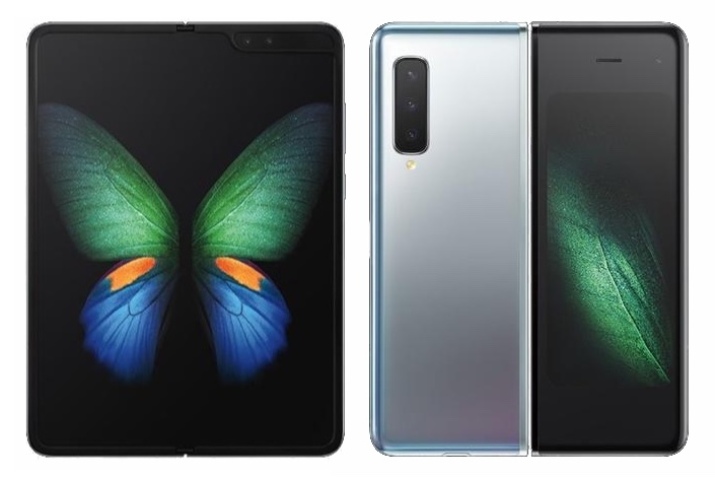
Samsung has started rolling out the One UI 3.1.1 update to other Galaxy Z-series foldable, in addition to the Galaxy Z Fold 3 5G and Galaxy Z Flip 3 5G that debuted with the new UI. The update is now expanding to Galaxy Z Fold 2 5G, Galaxy Z Flip 5G and Galaxy Z Flip.
Here's what's new in One UI 3.1.1:
Drag and Split
The Drag and Split feature allows you to simply drag the link you want to check to the edge of your screen and open it in a new window to be viewed simultaneously, eliminating the need to switch back and forth constantly between windows. This feature works with Samsung Internet, Samsung Notes, My Files, Messages, MS Office, OneNote, OneDrive and more apps.
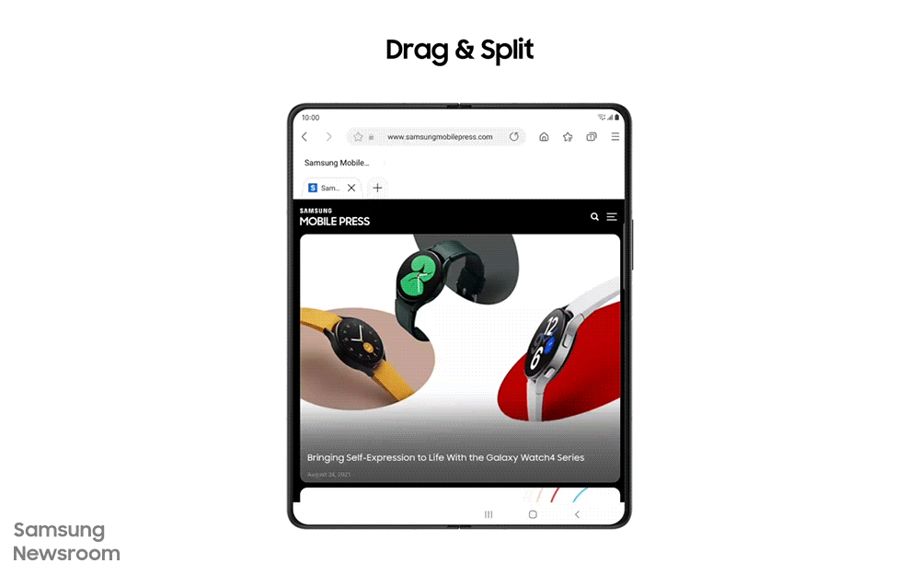 Image Credit: Samsung
Multi-Active Window
The feature lets you use up to three apps simultaneously on your screen, all arranged in your preferred layout. You can also adjust both the height and the width of the app windows as per your need.
- Go to Settings
- Click Advanced Features > Go to Labs
- Click on Multi Window for all apps
Natural Switching
With One UI 3.1.1, the window you want to move will pop up when you press down on the top handle, making it easier for you to drag and drop the app to your preferred location.
Rotate All Apps
With the new "Rotate All Apps" feature, Samsung has made it easier to make switching your phone from portrait to landscape smoother than ever. When the feature is toggled on in 'Labs', even vertically fixed apps can be rotated 90 degrees.
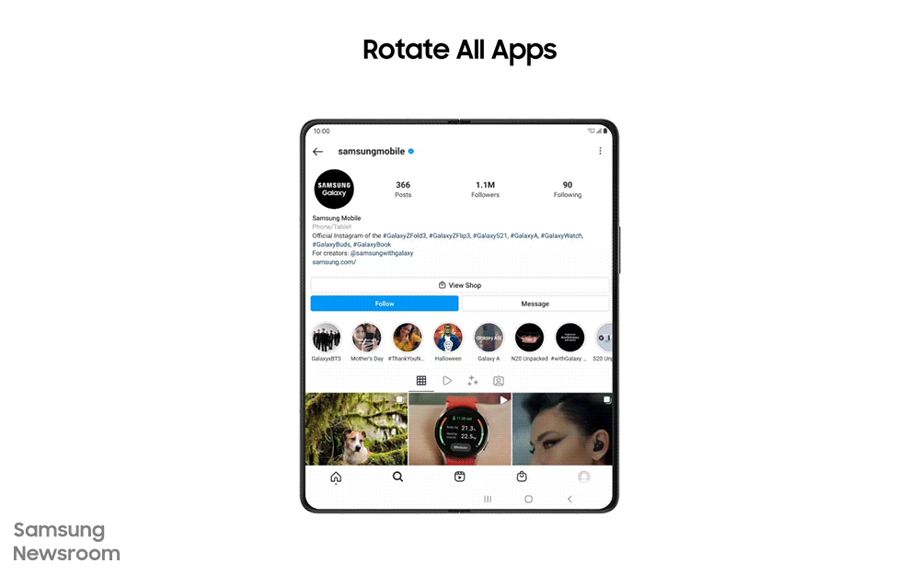 Image Credit: Samsung
To enable the feature, follow these steps:
- Go to Settings
- Click Advanced Features > Go to Labs
- Click on Auto rotate apps
- Choose between two options: Keep app's orientation or Match phone's orientation
Customized App Aspect Ratios
One UI 3.1.1 provides you with the ability to change the size of the app so that you can fully immerse yourself in their photos and videos. You can enable this feature in 'Labs'.
- Go to Labs > Click on Customized App Aspect Ratios > Click on apps to customize aspect ratios
- Select one of four options: Fullscreen, 16:9, 4:3, and App default
App Split View
App Split View shows your message list on the left of the screen and your selected conversation on the right so that you can take in more information at a glance. Additionally, you can expand the conversation into full-screen mode by clicking on a button at the top.
To turn the feature on, Go to Labs > Click on App split view > Select apps for App split view.
Flex mode panel
The new Flex mode panel in One UI 3.1.1 gives you easier control of media. You can enable the feature by turning on the Flex mode panel in Labs.
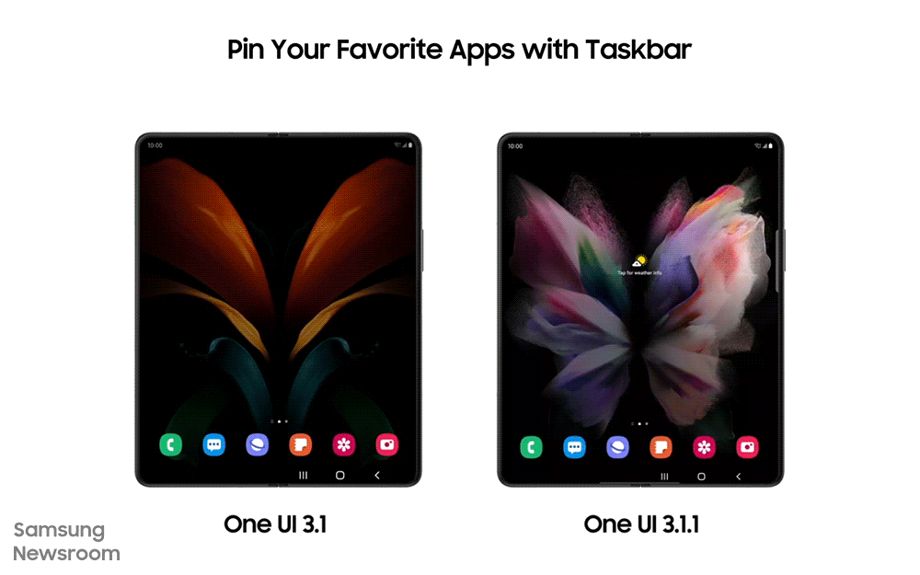
Pin your favourite apps
Taskbar pins the apps to the side of the Main Screen, where the Edge Panel used to be located, giving you instant access to your favourite apps. To enable the feature:
- Go to Labs > Select "on" next to Pin your favourite apps
- Swipe left on the handle to open up the tray > Tap the grid icon to see all your apps and edit
- Tap Pin and the Taskbar will be pinned to the side of the screen
Cover Screen Mirroring
Cover Screen Mirroring provides you with the exact same set-up and layout of the home screen on both your Cover and Main Screen. To enable the feature, go to Settings > Select Home screen > Click on Cover Screen mirroring.


 Google News