

How to change Mi Band 4 watch faces after October update
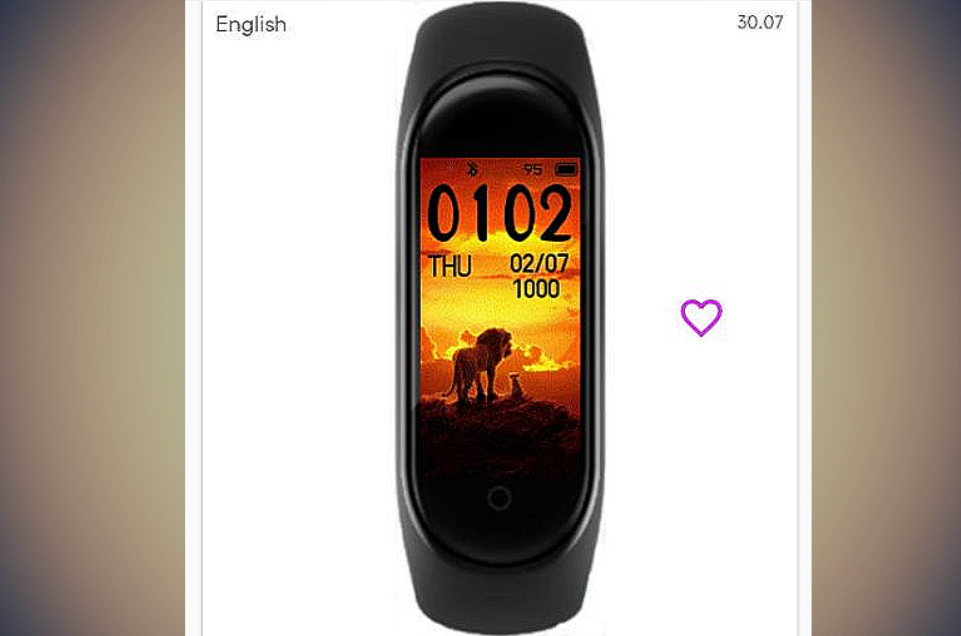
Mi Band 4 has been highly successful all across the world with its aggressive pricing and impressive features. Xiaomi rolled out an update at the beginning of October that fixed many things like auto-screen off options, new watch faces, improved tracking features. But some users have also complained that they are no longer able to use third-party watch faces after the update.
There's no official way to make third-party watch faces work in Mi Band 4 yet but a workaround can help those affected. Follow the steps below to make most out of the AMOLED display on the band.
Step 1: Download a third-party watch faces app. The most popular apps are Mi Band 4 WatchFaces and MiBand4 - WatchFace.
Step 2: Open the third-party app, go through the instructions and choose a watch face.
Step 3: Click on Install and head to the Mi Fit app.
Step 4: Click on "Profile" and select "Mi Band 4"
Step 5: Click on "Band Display Settings"
Step 6: You won't find the watch face you selected in the options but don't worry, select the watch face called "TIAN MING" (refer to the image below) and click on Sync watch face.
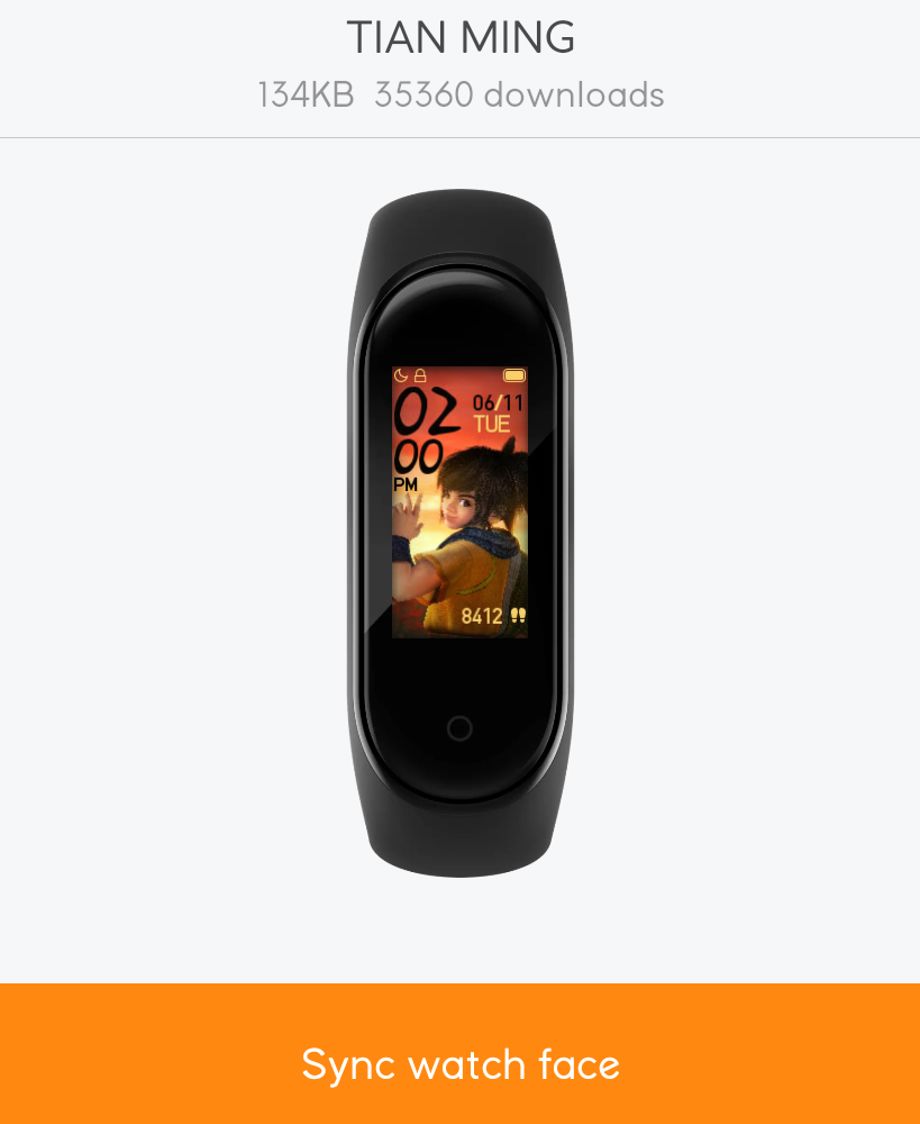
The watch face that you installed from the third-party app will now be synced to your Mi Band 4.
The huge collection of third-party watch faces available for Mi Band 4 gives it a huge edge over its competitors like Honor Band 5 and Xiaomi's developer community never fails to impress.


 Google News