

Live Captions and other helpful features coming to Chromebooks
Live Captions on Chrome automatically generate real-time captions for media with audio. It works across social and video sites, podcasts and radio content, personal video libraries embedded video players, and most web-based video or audio chat services. Last month, the feature was released for Chrome on Windows, Mac and Linux devices.
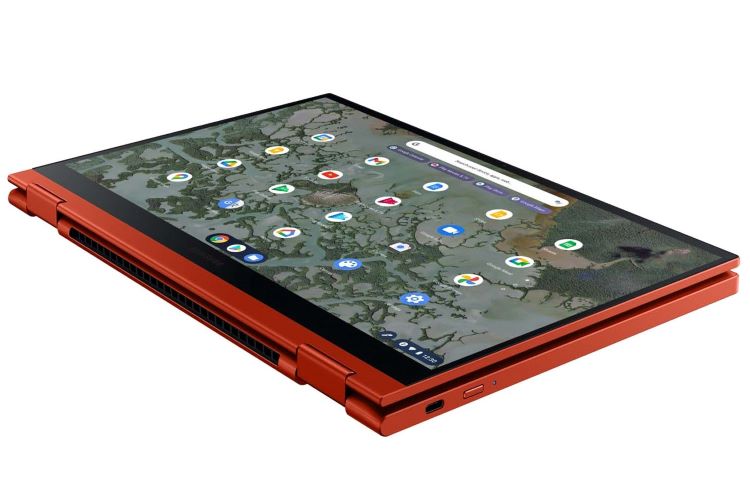
Google is rolling out new features including Live Captions to Chromebooks. In the coming weeks, the Live Captions feature will expand to Chrome browsers on most Chrome OS devices.
Live Captions on Chrome automatically generate real-time captions for media with audio. It works across social and video sites, podcasts and radio content, personal video libraries embedded video players, and most web-based video or audio chat services. Last month, the feature was released for Chrome on Windows, Mac and Linux devices.
"Chromebooks are designed to be powerful and easy-to-use devices. In our latest release, your Chromebook is getting new helpful features that make it easier to get answers, troubleshoot, scan files and more," Google said.
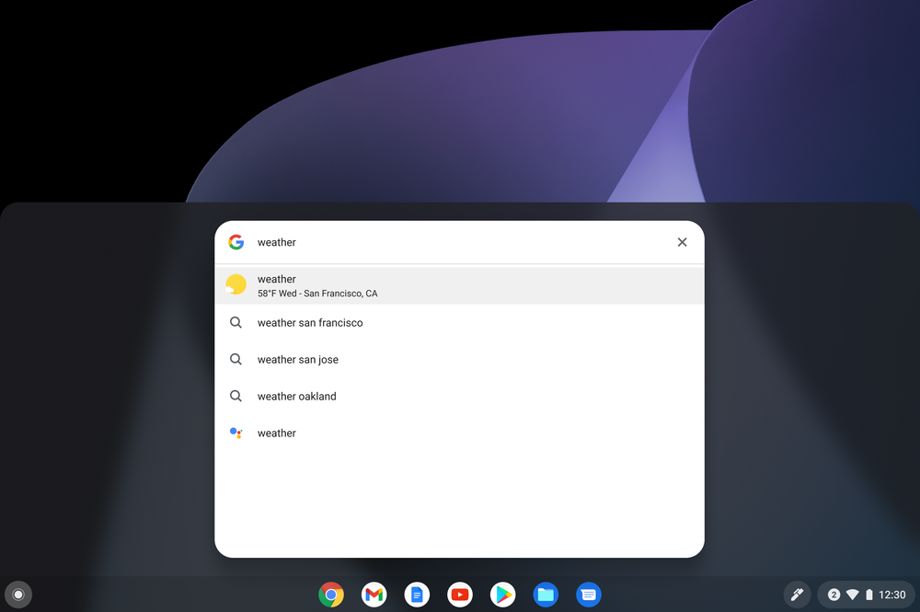
Secondly, the Chrome OS Launcher, which lets you search your Drive, apps, local files, Google and more from one place, can now be used for simple calculations, looking up the weather, or checking a word definition or stock price. To use the new capabilities, you need to tap the Everything Button and type "weather" or your math question into the search bar, and the result will automatically pop up.
Thirdly, Google has introduced a new Diagnostics app that lets you run tests and check the status of your Chromebook's battery, CPU and memory. The app is available on every Chromebook.
Further, the new scanning feature on Chromebooks will allow you to easily scan items directly from your printer to your laptop. To scan files, your printer must have scanning functionality and should be connected to the internet.
- Tap the Everything Button and search for the Scan app
- Open the app and choose your printer, file type and resolution
- Select the Scan button to start scanning (You can scan files to your Chromebook over Wi-Fi or directly through a USB connection)
- Scanned files are saved to the location you specified in the "Scan to" option


 Google News